Network How-to
How to Test Internet Speed with CMD on Windows
Test internet speed with CMD or PowerShell on Windows 11 and 10: use the Speedtest CLI, a curl download test, ping for latency and netsh for Wi-Fi rate.

On this page
Windows has no built-in speed test command, but you can test internet speed from CMD in two ways. Install Ookla's free Speedtest CLI with winget install Ookla.Speedtest.CLI and run speedtest for download, upload and ping. Or time a download with the built-in curl. Use ping -n 20 1.1.1.1 for latency and netsh wlan show interfaces for your Wi-Fi link rate.
Time: 2–5 minutes · Cost: free · Works on: Windows 11 and Windows 10
Maybe you are on a server without a browser, you want to log results in a script, or you just prefer the keyboard. Whatever the reason, you can test internet speed with CMD on Windows using tools that are either built in or one command away. This guide covers four methods, from a full speed test to quick latency checks, and shows how to read the results.
Method 1: Ookla Speedtest CLI (Best)
The official command-line version of Speedtest measures download, upload, ping, jitter and packet loss.
-
Install it with winget
Commandwinget install Ookla.Speedtest.CLIwinget is included in Windows 11 and current Windows 10. Close and reopen Terminal after installing so the command is found.
-
Run the test
Commandspeedtest --accept-license --accept-gdprThe flags are needed only the first time. After that, plain
speedtestworks. -
Pick a server or log results (optional)
Commandsspeedtest -L speedtest -s 12345 speedtest -f csv >> speedlog.csv-Llists nearby servers,-suses one by ID, and-f csvoutputs a line you can append to a log file for scheduled tests.
Method 2: Test Internet Speed in CMD with curl
Windows 10 and 11 include curl. Download a test file and let curl report the average speed. This measures download only.
curl -o NUL -w "%{speed_download}" https://speed.cloudflare.com/__down?bytes=100000000
The result is in bytes per second. Multiply by 8 and divide by 1,000,000 for Mbps: 12,500,000 means
100 Mbps. In PowerShell type curl.exe instead of curl, because curl there is an
alias for a different command. Why bytes and bits differ is explained in Mbps vs MB/s.
Method 3: PowerShell One-Liner in Mbps
This downloads 100 MB to a temp file, times it and prints the speed in Mbps directly:
$ProgressPreference = 'SilentlyContinue'
$t = Measure-Command { Invoke-WebRequest 'https://speed.cloudflare.com/__down?bytes=100000000' -OutFile "$env:TEMP\st.bin" -UseBasicParsing }
[math]::Round(800 / $t.TotalSeconds, 1)
Remove-Item "$env:TEMP\st.bin"
100 MB is 800 megabits, so 800 divided by the seconds gives Mbps. Turning off the progress bar matters: in Windows PowerShell 5.1 it slows downloads a lot.
Method 4: Latency and Wi-Fi Rate
Speed is only part of the story. For latency and stability:
ping -n 20 1.1.1.1
pathping 1.1.1.1
netsh wlan show interfaces- ping shows the average and maximum round-trip time. A big gap means jitter; see what ping and jitter are.
- pathping tests every hop to the server for about five minutes and shows where packets are lost.
- netsh wlan show interfaces shows Wi-Fi signal and Receive/Transmit rate, the link speed to your router. Your internet speed cannot be higher.
Command Line vs a Speed Test App
| Method | Download | Upload | Ping/jitter | History |
|---|---|---|---|---|
| Speedtest CLI | Yes | Yes | Yes | Via CSV log |
| curl / PowerShell | Yes | No | No | No |
| ping / pathping | No | No | Yes | No |
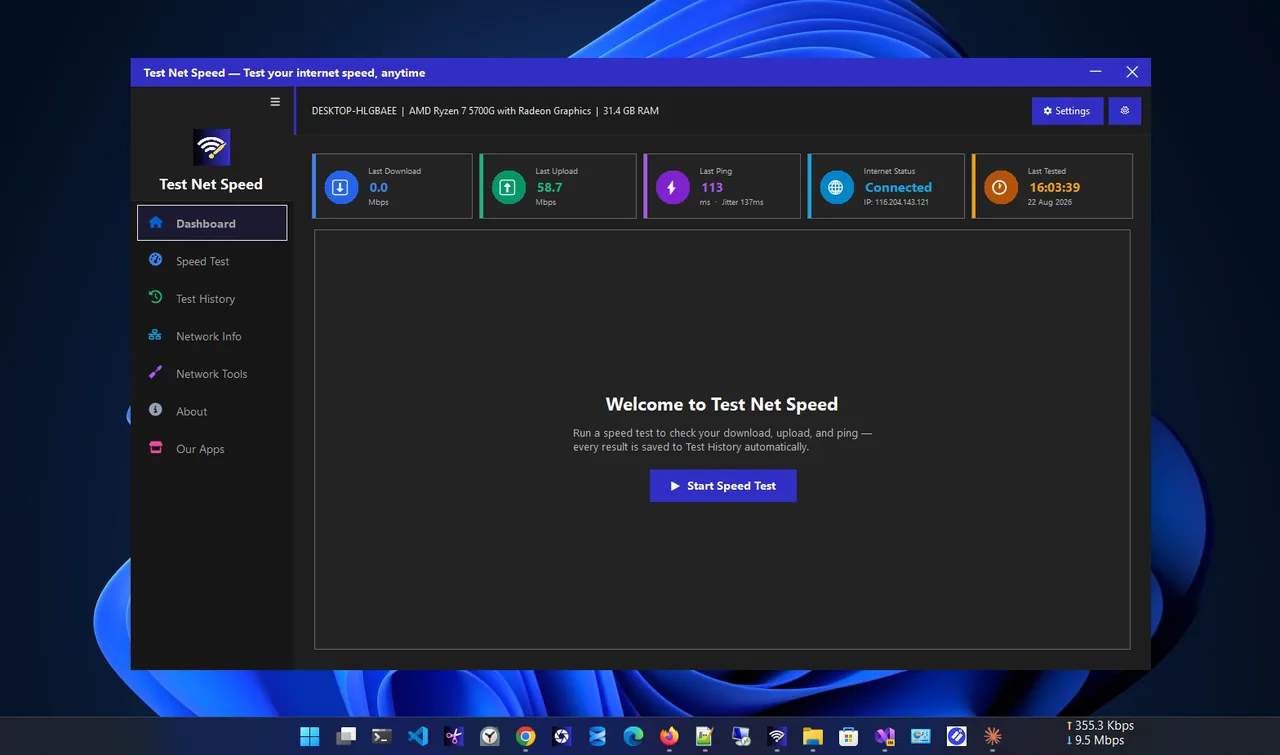
| Test Net Speed app | Yes | Yes | Yes | Saved automatically |
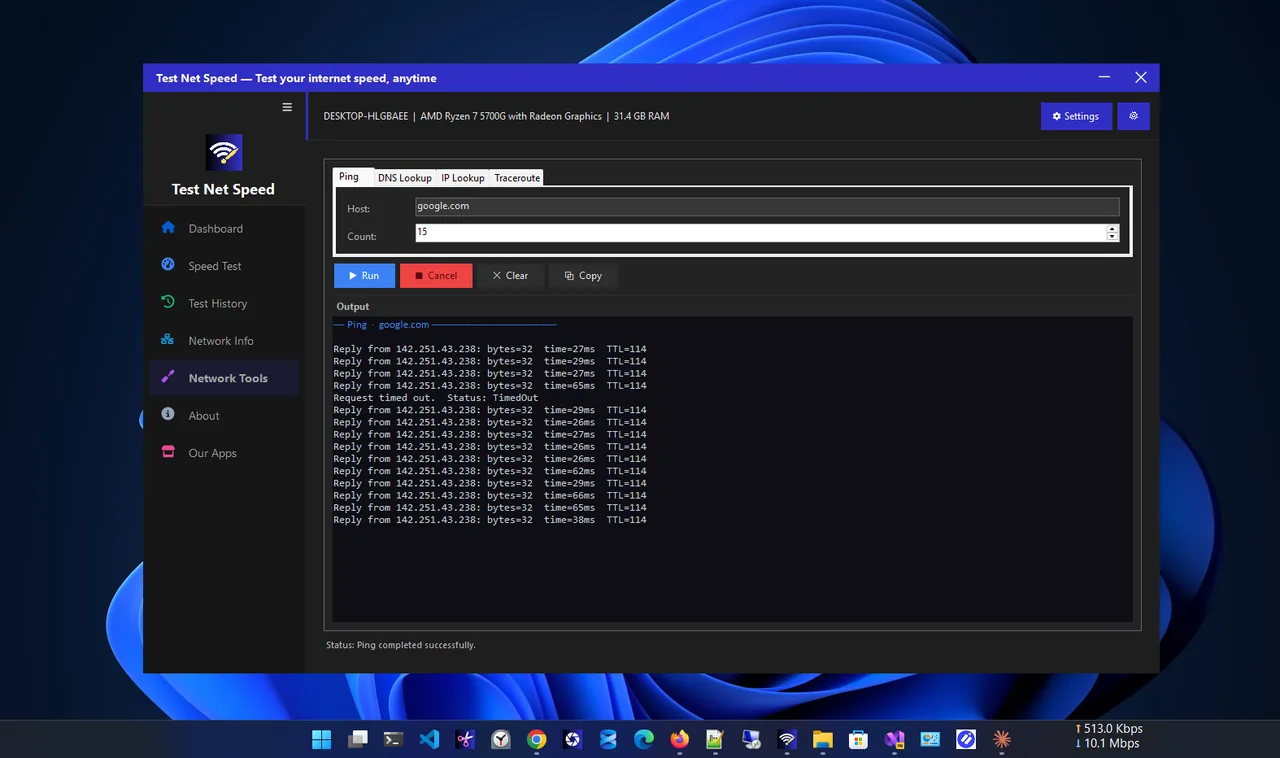
If you want results without typing, Test Net Speed runs the full test in one click and keeps a history of every result, which makes it easy to spot slow evenings or compare Wi-Fi with Ethernet.
Is Your Result Good?
Compare the download number to your plan: 80–90% of the advertised speed on a cable is normal. Whether that speed is enough depends on your household; see how much internet speed you need.
Tips for Accurate Command-Line Results
- Use a cable for the test. Wi-Fi results change with every step you take. Test on Ethernet to measure the line itself, then on Wi-Fi to measure your wireless.
- Stop other traffic. Pause downloads, cloud sync and streaming on every device, or the test measures what is left over.
- Run it three times. Take the middle result. One test can hit a busy server or a burst of traffic.
- Test at different times. A good result at 10 am and a poor one at 9 pm points to evening congestion at your ISP, which is useful evidence when you contact support.
- Check the link first. If
netsh wlan show interfacesreports a 144 Mbps receive rate, you cannot get 500 Mbps over that Wi-Fi link no matter what the plan says.
FAQ
Is there a built-in speed test command in Windows?
No. Windows has no single command for download and upload speed. Use the Speedtest CLI or time a download with curl.
Does ping show internet speed?
No. Ping measures latency (delay), not bandwidth. A fast connection can have high ping and a slow one low ping.
Why is the curl result lower than a browser speed test?
curl uses a single connection, while most speed tests open several at once. On fast plans a single connection may not reach full speed.
Can I schedule speed tests?
Yes. Put speedtest -f csv >> C:\logs\speed.csv in a batch file and run it hourly with Task Scheduler.
Conclusion
To test internet speed with CMD, install the Speedtest CLI with winget for a complete result, or use curl or PowerShell for a quick download check with no install. Add ping and netsh to check latency and Wi-Fi link rate. Explore more network apps for Windows.