
Net Speed Meter Plus
Speed widget, speed test, usage stats and per-app bandwidth monitor.
 Net Monitor
Your full network companion on the desktop.
Real-time speed, speed tests with history, usage statistics, data plan alerts and a per-app connection monitor in one app.
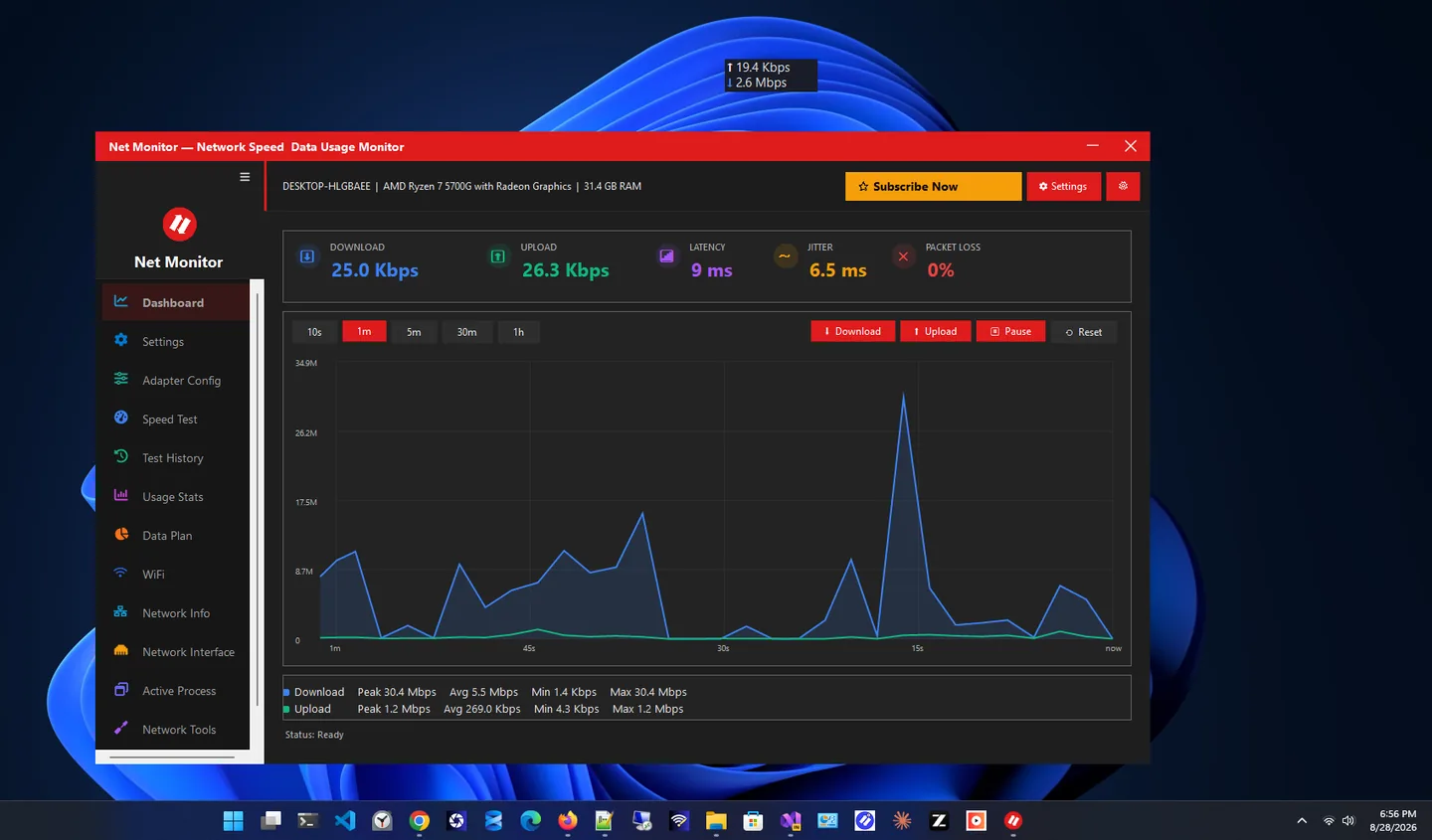
Net Monitor is a network monitor for Windows that gives you complete visibility into your internet connection from the desktop or system tray. Rewritten from the ground up, it turns a simple speed meter into a full network companion with real-time tracking, diagnostics and usage management.
A clean always-on-top widget shows your live download and upload speed. Behind it you get speed tests with saved history, daily and monthly usage statistics, data plan tracking with alerts, a per-app connection monitor, adapter and connection details, saved Wi-Fi passwords with QR sharing, and ping, DNS lookup and traceroute tools.
It is built to stay light: no database is required, it starts with Windows if you want, and it runs quietly in the background without slowing your PC.
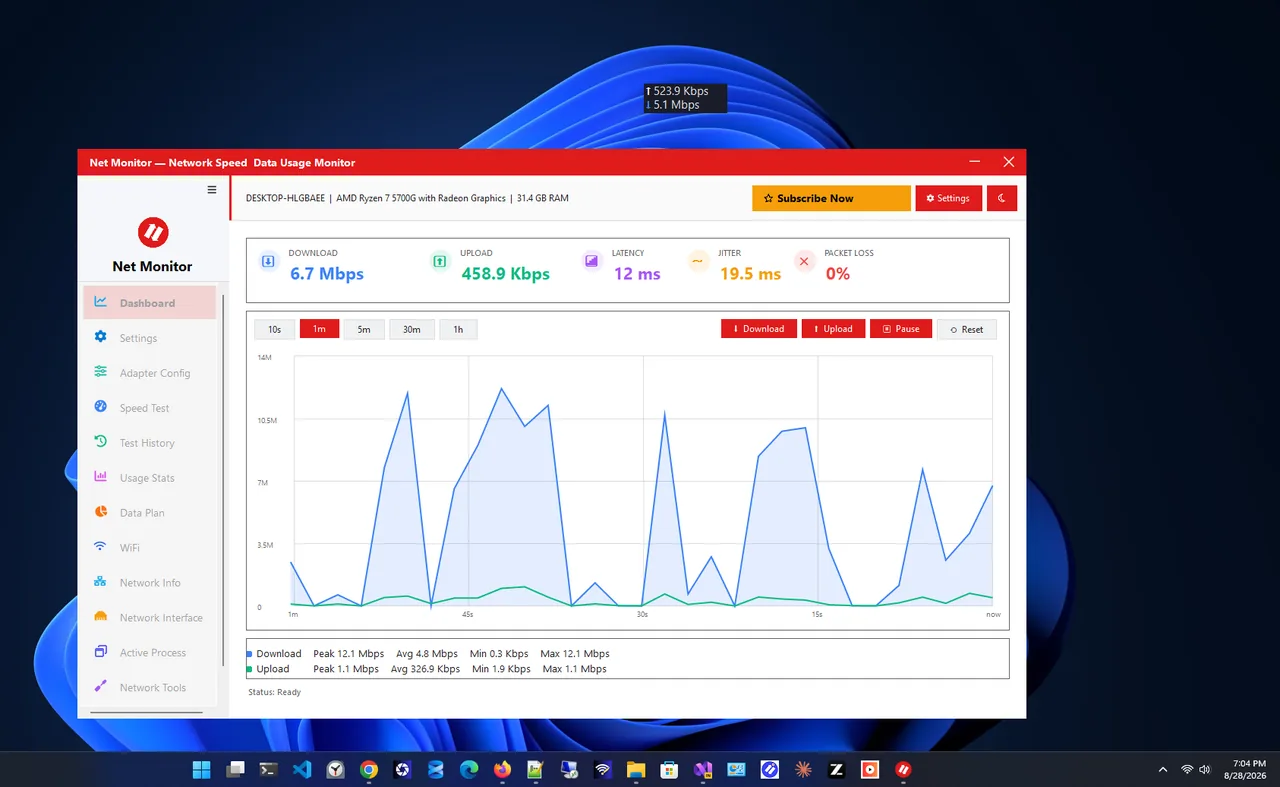
Light theme
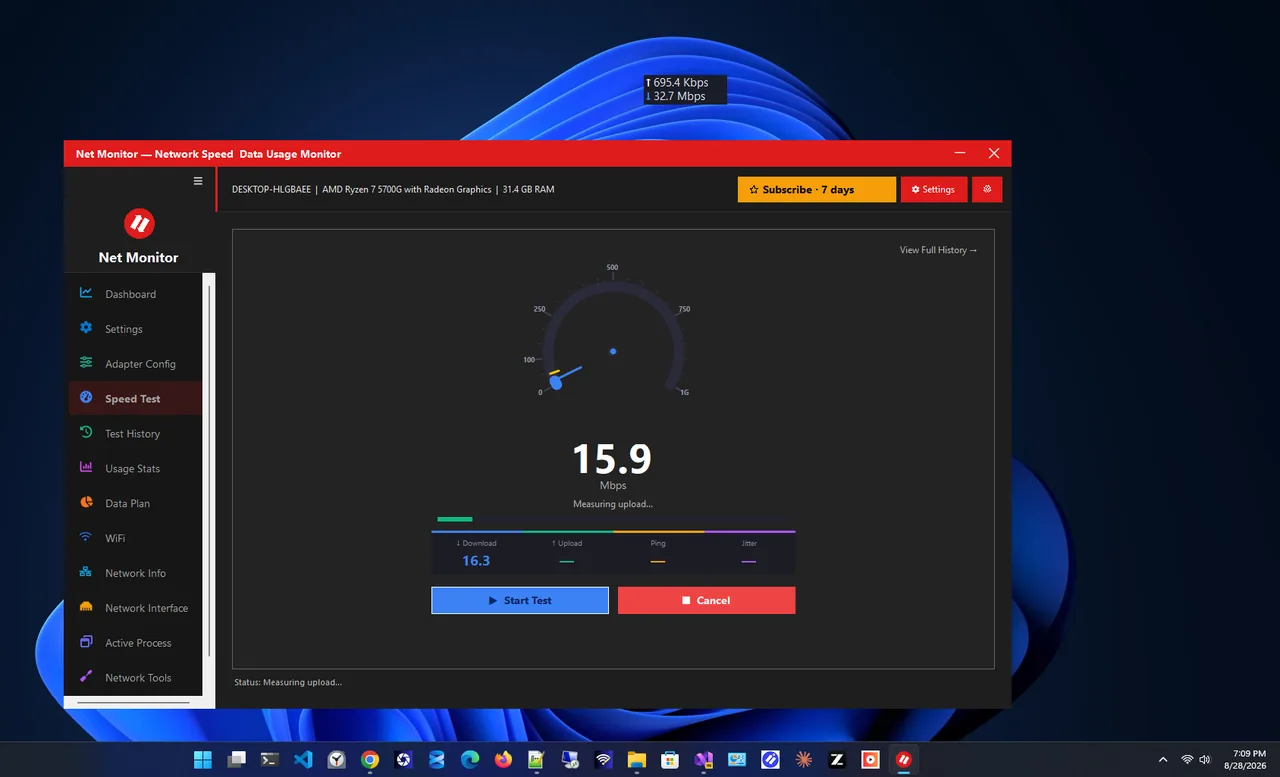
Speed test
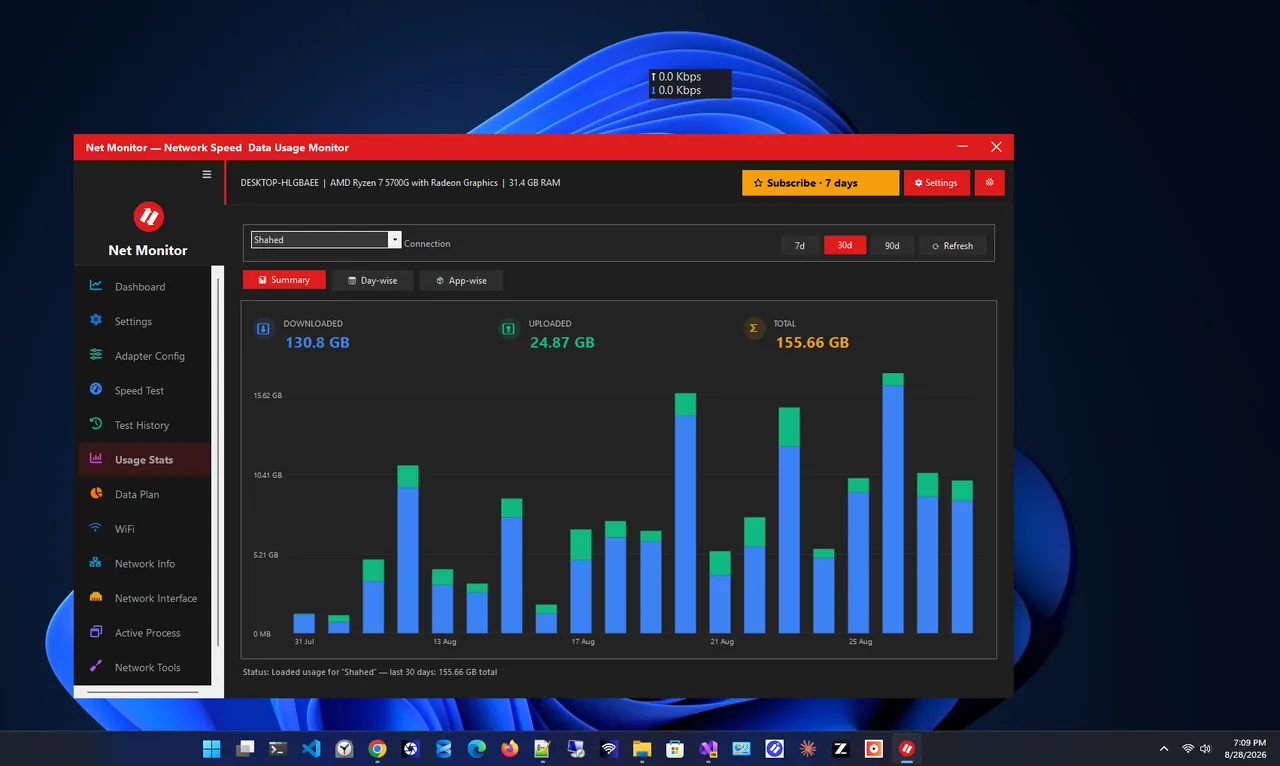
Usage statistics
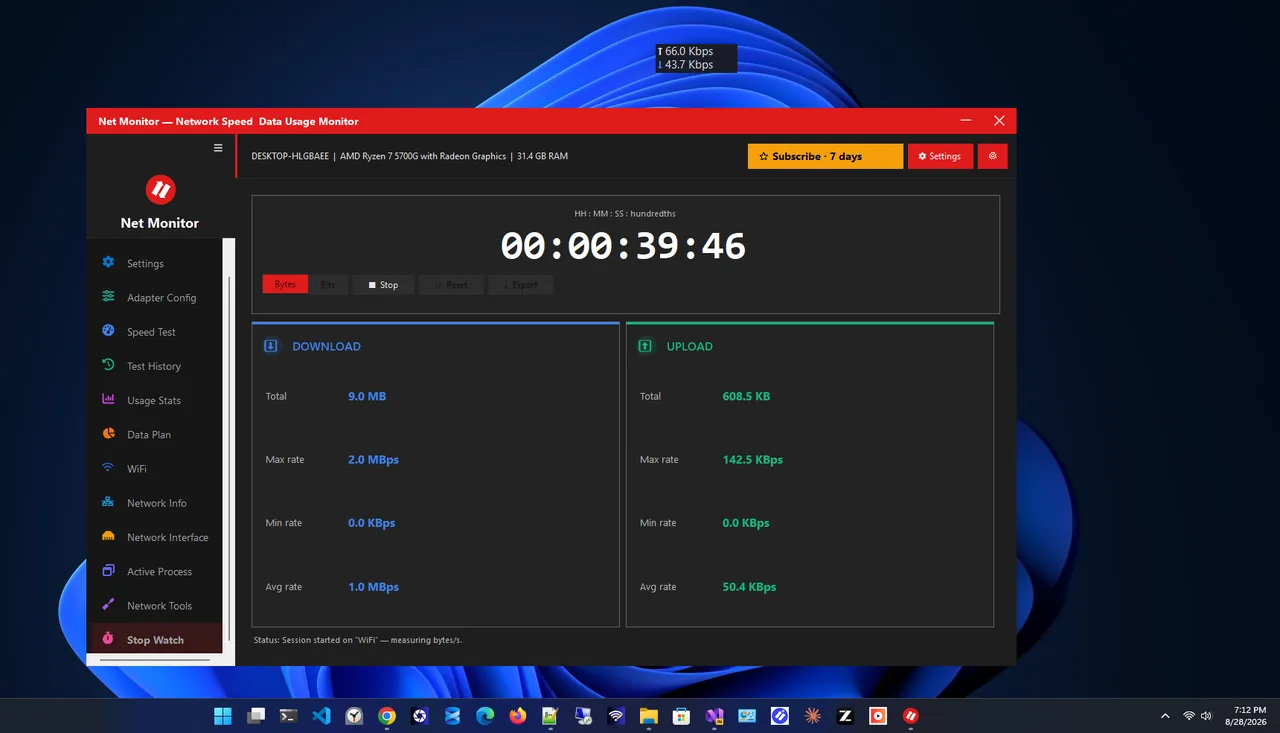
Stopwatch
Monitoring, diagnostics and usage tracking in one place.
Always-updating download and upload speed in a drag-anywhere floating window.
Download, upload and ping in seconds; every result saved to compare over time.
Daily and monthly breakdowns of your data consumption.
Set your plan limit and get warned before you reach it.
See which applications are using your network right now.
Ping, DNS lookup and traceroute without a command prompt.
Get Net Monitor from the Microsoft Store.
Let monitoring begin the moment you log in.
Keep live speed on screen above your other windows.
Open usage stats, the per-app monitor or the tools when something looks wrong.
A good network monitor for Windows answers four questions quickly: how fast is my connection right now, how fast can it go, how much data have I used, and which app is using it. Net Monitor puts the first answer on screen all the time and keeps the other three one click away.
Speed test history is useful when you contact your ISP: instead of "it feels slow", you can show results from different days and times. Usage statistics and data plan alerts help on capped connections, and the per-app monitor catches unexpected background activity.
Want a simpler widget? Try Net Speed Meter. More help is coming in our Windows guides.
Live download and upload speed in a floating widget, plus speed tests with history, usage statistics, data plan tracking, a per-app connection monitor, adapter details, saved Wi-Fi passwords and network tools.
No. It is designed to be resource-efficient, needs no database and runs quietly in the background.
Yes. Set your plan limit in data plan tracking and Net Monitor warns you before you approach the cap.
Yes. The per-app connection monitor shows which applications are using your network in real time.
Yes, if you turn on Windows auto-start, monitoring begins as soon as you log in.
Yes. Net Monitor is DPI-aware up to 200% and offers dark and light themes.
Speed widget, speed test, usage stats and per-app bandwidth monitor.

See live download and upload speed on your desktop, always on top.

Your public IP, ISP, location and network tools like ping and DNS lookup.
See saved Wi-Fi passwords and share networks with a QR code.
Wi-Fi says connected but no internet on Windows 11? Find out if it is the PC, router or ISP, then fix DNS, IP, proxy and driver problems. 11 fixes.
Ethernet not working on Windows 11? Fix 'unidentified network', 'network cable unplugged' and no internet on a wired connection with these 10 checks.
Check Ethernet speed on Windows 11 in Settings, Control Panel or PowerShell. See your link speed (100 Mbps, 1 Gbps or 2.5 Gbps) and fix a slow wired link.