Test Net Speed
Internet speed test with ping, jitter, saved history and network tools.
 IP Address App
Your IP, your network, every tool in one place.
Public IP, ISP and location the moment it opens, plus ping, traceroute, DNS lookup, port check, a subnet calculator and a speed test.
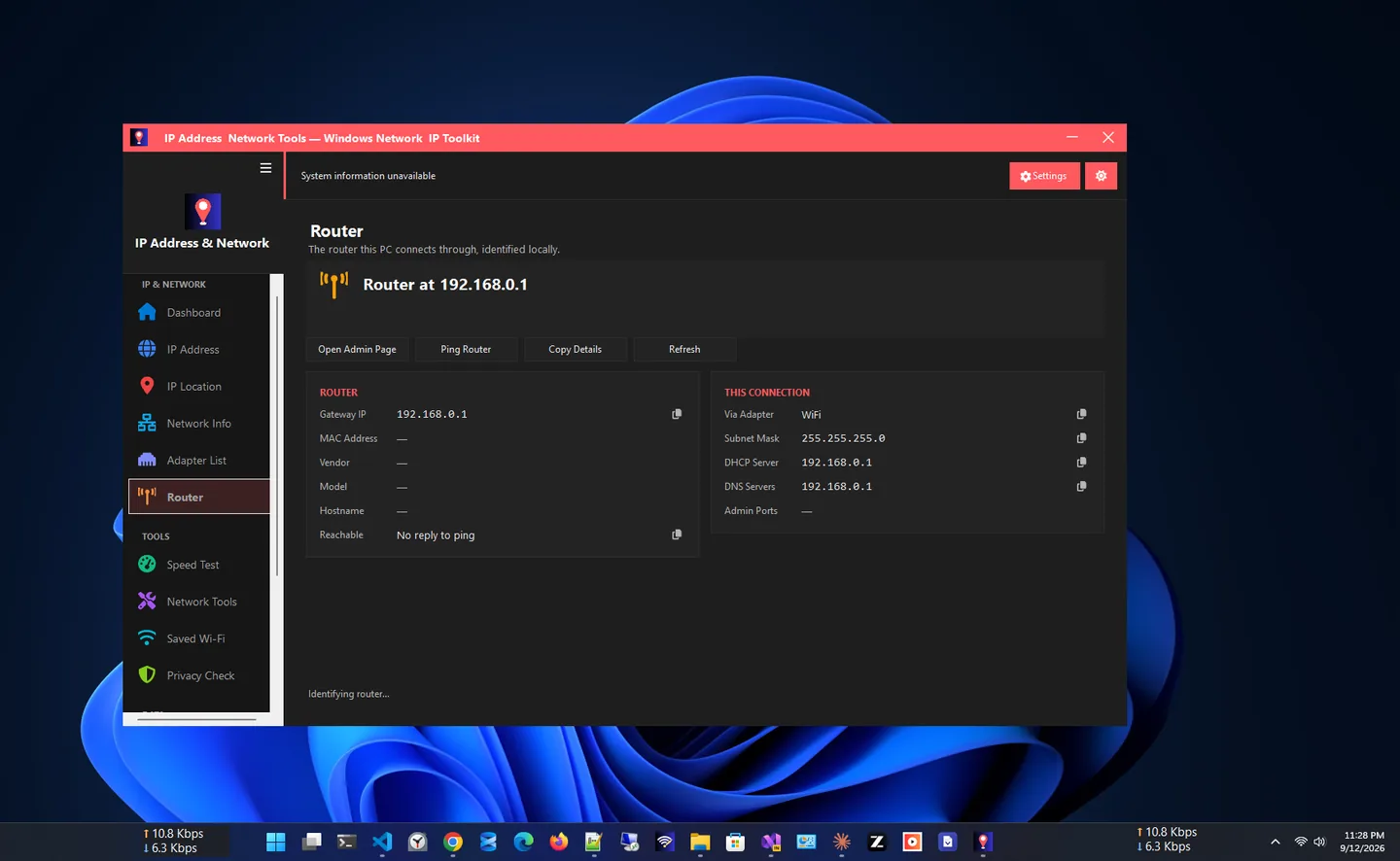
IP Address App is a privacy-first IP address app for Windows. Open it and your public IPv4 and IPv6 addresses appear instantly, along with your ISP, ASN, connection type and location, without opening a browser. In the Microsoft Store it is listed as IP Address & Network Tools.
The dashboard shows your connection status at a glance: connectivity, VPN detection, proxy status, local IP, adapter type and link speed. Every adapter (Wi-Fi, Ethernet, VPN or virtual) is listed with its IP, subnet, gateway, DNS, MAC address and, for Wi-Fi, signal, channel and band.
It is also a full network toolkit: IP location lookups for any address, ping, traceroute, DNS lookup over DNS-over-HTTPS, port check with SSL certificate details, an offline subnet calculator and a speed test with saved history. It is free, with no account, no ads and no telemetry.
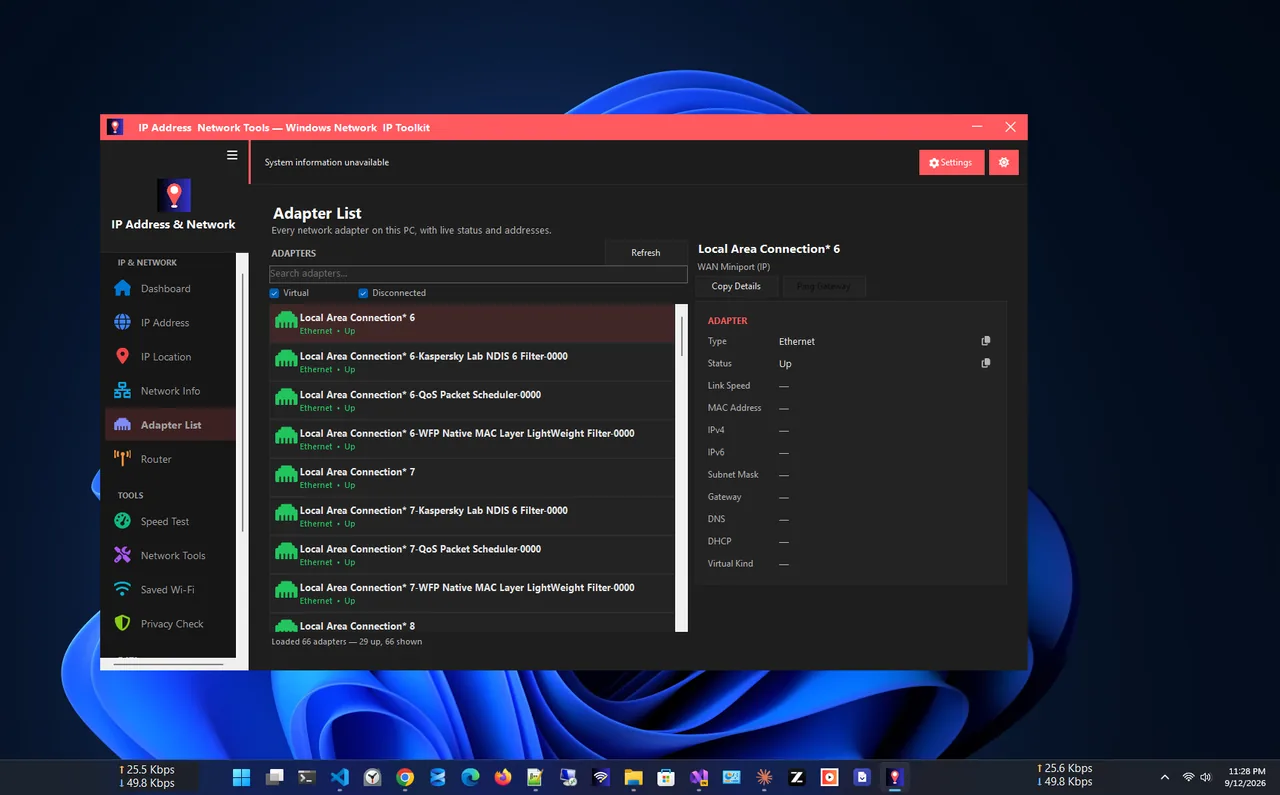
Adapter list
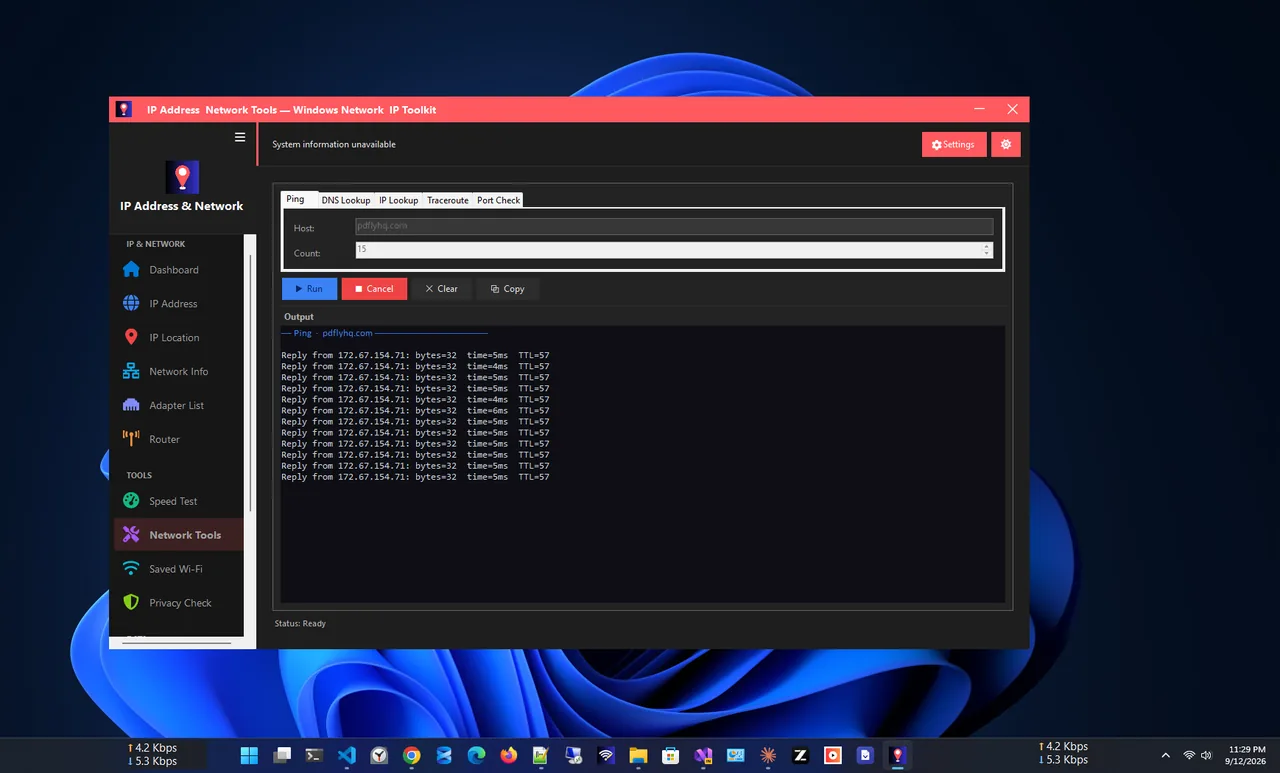
Network tools
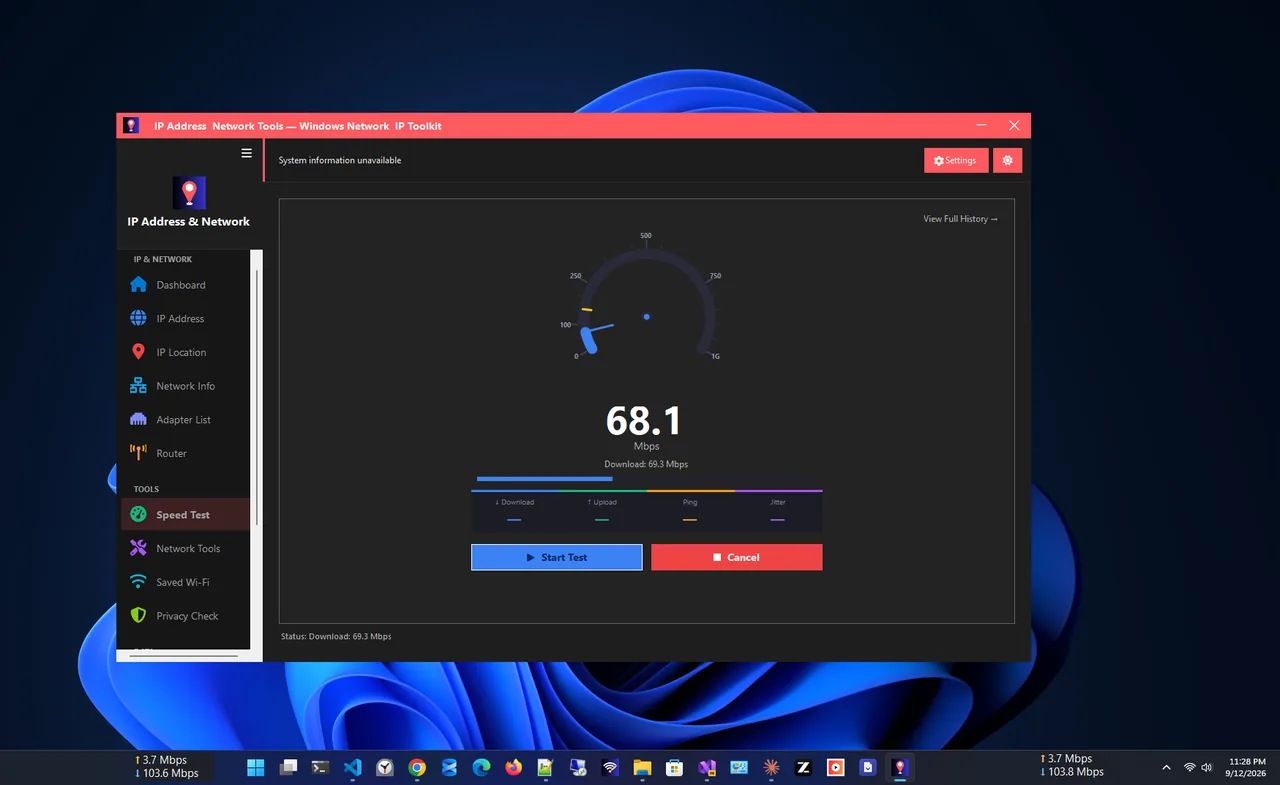
Speed test
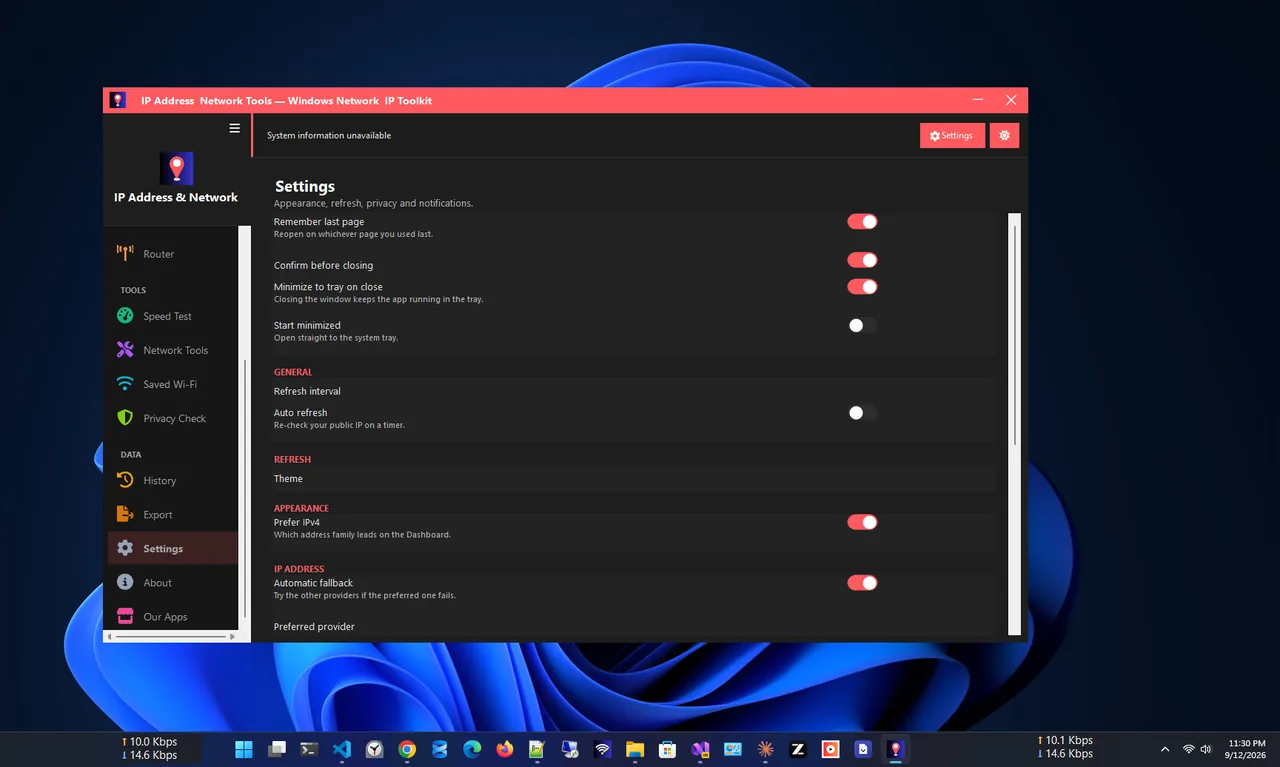
Settings
Free, with no watermarks, subscriptions or limits.
IPv4 and IPv6 with ISP, ASN and location, copied in one click.
City, region, country, timezone and ISP for any IP address.
State, IP, gateway, DNS, MAC, link speed and Wi-Fi signal for every adapter.
Ping, traceroute, DNS lookup (DoH), port check and a subnet calculator.
Download, upload, ping and jitter, saved locally.
VPN, proxy, DNS resolver and IPv6 exposure, clearly explained.
Get IP Address App free from the Microsoft Store.
Your public IPv4 and IPv6, ISP and location appear right away.
Copy any value with one click, or export it as TXT, CSV, JSON or HTML.
Open Adapters to see the local IP, gateway and DNS of each connection.
Your public IP address is the address websites see; your router or ISP assigns it to your whole connection. Your local IP address identifies your PC inside your home or office network, usually something like 192.168.x.x. IP Address App shows both: the public address on the dashboard and every local address on the adapters page.
Knowing the difference helps when you set up port forwarding, connect to a home server, check whether a VPN works, or give support staff the details they ask for.
Need live speed on screen? See Net Speed Meter. More help is coming in our Windows guides.
Yes. It is free in the Microsoft Store, with no watermarks, no subscriptions and no limits.
Open IP Address App. Your public IPv4 and IPv6 addresses appear immediately, and the adapters page shows the local IP of each connection.
No. There is no account, no ads and no telemetry. IP location lookups use keyless public providers and are cached locally, and results never leave your PC without your action.
Yes. The dashboard and privacy check show VPN detection from local adapter analysis, proxy status and the DNS resolver in use.
Ping, traceroute, DNS lookup over DNS-over-HTTPS, port check with SSL details, a subnet calculator and an internet speed test.
That is its current Microsoft Store listing name. It is the same app.
Internet speed test with ping, jitter, saved history and network tools.
See saved Wi-Fi passwords and share networks with a QR code.

Full network monitoring: live speed, usage history and per-app connections.

See live download and upload speed on your desktop, always on top.
DNS server not responding on Windows 11 or 10? Find out if it is the PC, router or ISP, then fix it in minutes with flush DNS, a new DNS server and more.
Fix DNS_PROBE_FINISHED_NXDOMAIN in Chrome or Edge on Windows: check the address, flush DNS, clear the host cache, change DNS and check the hosts file.
Change DNS server on Windows 11 to Cloudflare, Google or Quad9 for faster, more reliable browsing: Settings steps, encrypted DNS and how to test it.